Support / Your Site
Template Fields
Template Fields hold the wording on your website that isn't part of your content: menu labels, button text, page titles, your welcome message and the title and description search engines show. You can change any of them to match your brand.
Change the wording on your site
Updated Oct 25, 2026
-
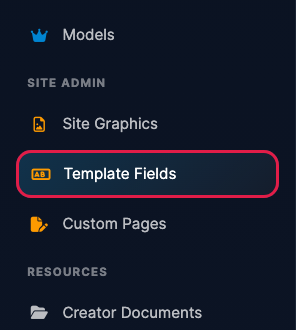
Log in to your dashboard and click Template Fields under Site Admin in the left menu.
-
The fields are grouped by where they appear: Footer, Join Page, Meta Data (your website title, description and keywords for search engines), Navigation, Page Titles, Settings and Tour (the pages visitors see before they join, including your Welcome Message). Each field shows its current text.
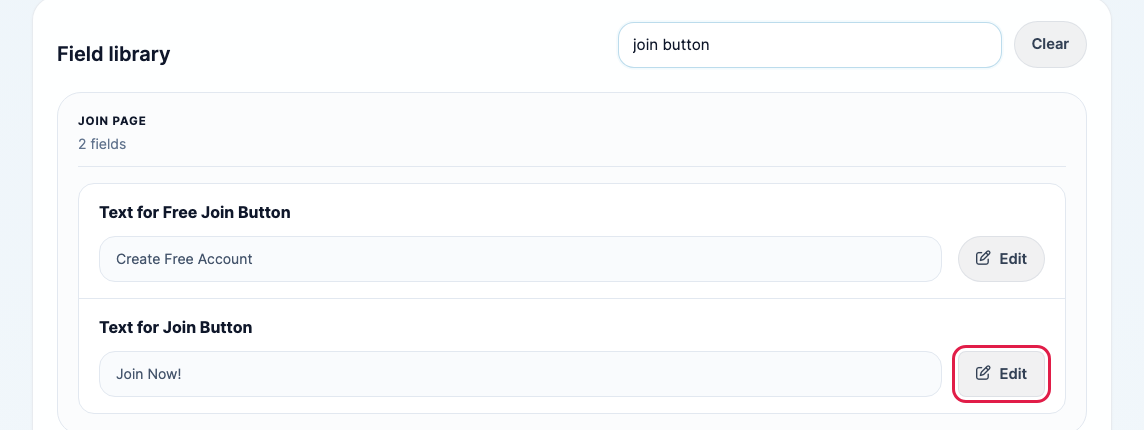
To find a field quickly, type a word from it into the search box, for example "join button". Then click Edit next to the field.
-
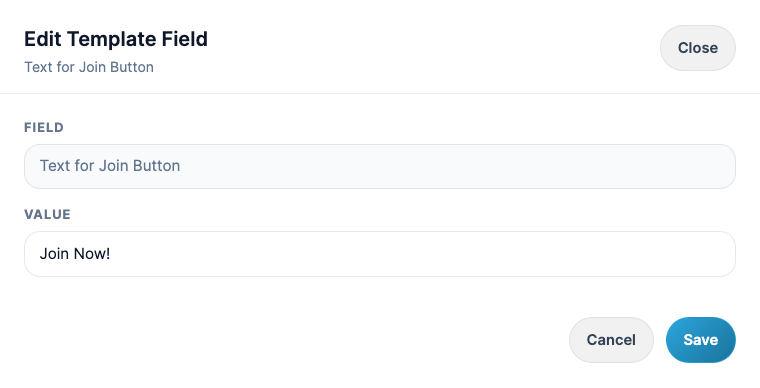
Type your new text in Value and click Save.
- Open your website to check the change. If you still see the old text, do a hard refresh: Ctrl + Shift + R (Windows) or Cmd + Shift + R (Mac).
Good to know: to show or hide a menu link altogether, rather than rename it, use the Navigation section of Store Settings.
Still need help?
Our US-based team answers every ticket.