
Age Verification
Some countries and US states now require adult websites to check that visitors are adults before they can see the site. PaysiteManager handles this for you: we keep track of the laws, choose what happens in each place, and run the age checks through our verification partner, VerifyMy. This guide explains what your visitors see and where to check your store's settings and results.
Good to know: age verification is free. We cover the full cost, so it never appears as a fee on your payouts. You don't need to set anything up.
What your visitors see
What happens depends on where a visitor is browsing from:
- Provider: before they can view your site, the visitor confirms their age with VerifyMy. Once verified, they aren't asked again on that device, and members who verified aren't asked again when they log in.
- Block: visitors from that region see a notice page instead of your site, because its laws can't currently be met.
- Off: no check. Visitors see your site as normal.
The same rules apply to you. If you're in a blocked region and need to see your own site, follow Trusted IP & Whitelist.
Check your store's settings
-
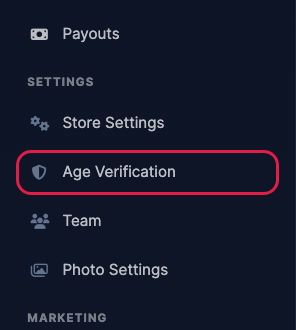
Click Age Verification under Settings in the left menu.
-
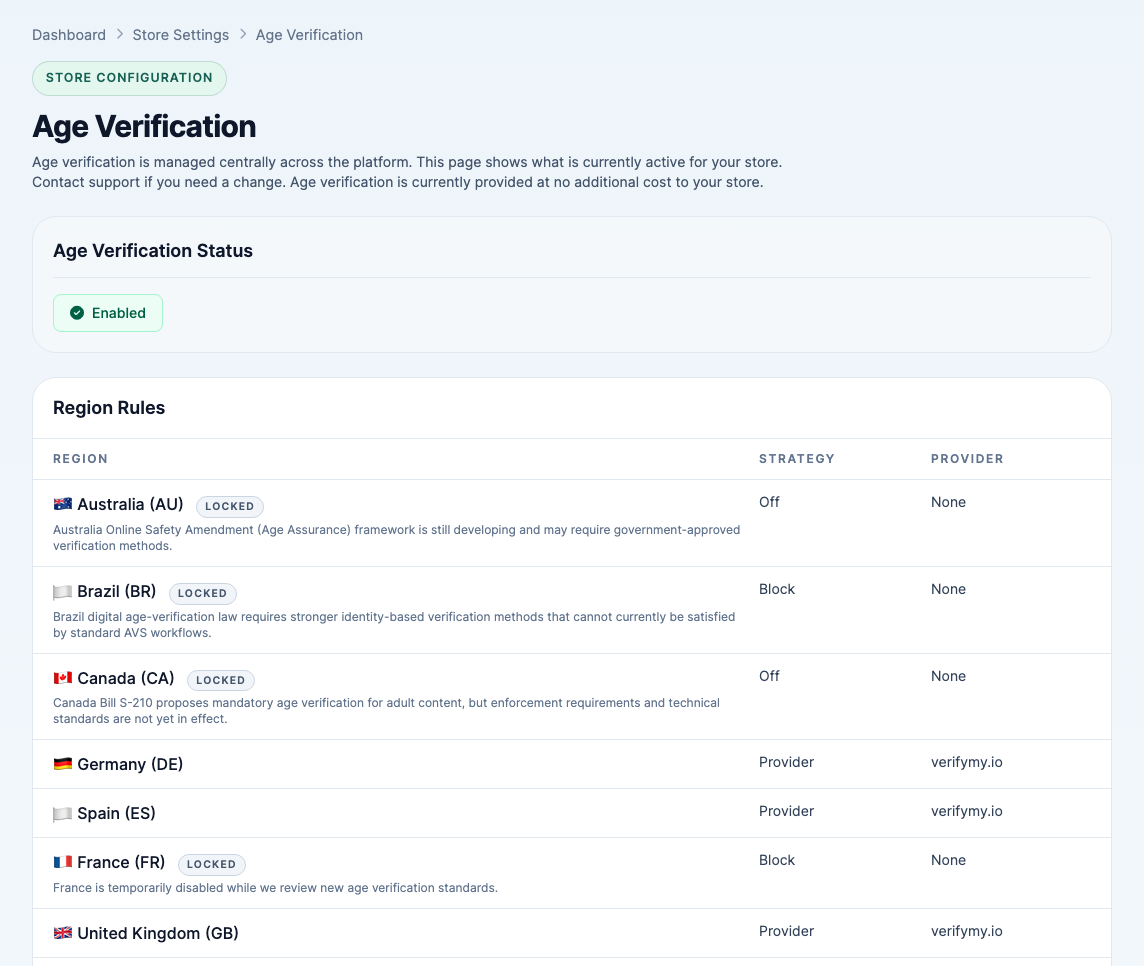
Age Verification Status shows whether it's on for your store. Region Rules lists every country and state with a rule, what happens there (Strategy) and who runs the check (Provider). Regions marked Locked are set by us because of local law, with a short note explaining why. The settings are managed centrally, so this page is view only: contact support if you think something should change.
See how many visitors verified
-
Click Age Verification under Reporting in the left menu. Choose a Date range and click Filter to see how many visitors started a check (Attempts), passed (Approved), failed, or haven't finished yet (In Progress).
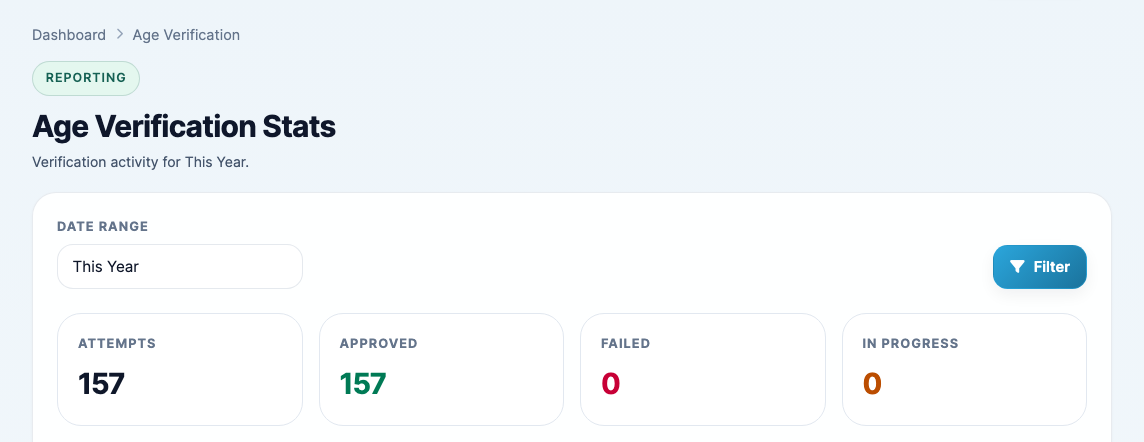
- Below the totals, Verified Members and Verified Revenue show how many verified visitors went on to join and what they spent. Click View Verified Members to see them one by one.