
How and When You Get Paid
Your website sales are paid out once a month. This guide explains the pay period, when the money arrives, how your payout is calculated, and where to see your payment history, download invoices and set how you want to be paid.
Good to know: only the store owner can change payout details. Teammates can see the Payments page if they have access to reporting, but not the payout settings.
The pay schedule
- Pay period: each period runs from the 16th of one month to the 15th of the next. Every website sale (joins, rebills, video purchases and credits) counts toward the period it was made in.
- Payout prepared: on the 16th, the period that just ended is closed and your payout for it is calculated. It shows on your Payments page as Processing.
- Payday: the payout is sent on the 5th of the following month. If the 5th is on a weekend or public holiday, it goes out on the next business day.
For example, sales from August 16 to September 15 are calculated on September 16 and paid on October 5.
See your payments
-
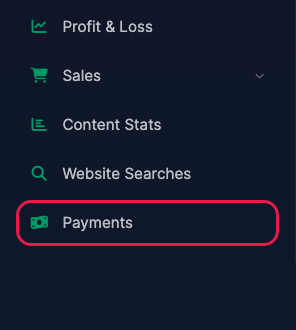
Click Payments under Reporting in the left menu. (The Payments link under Custom Videos is a different page, for custom video invoices.)
-
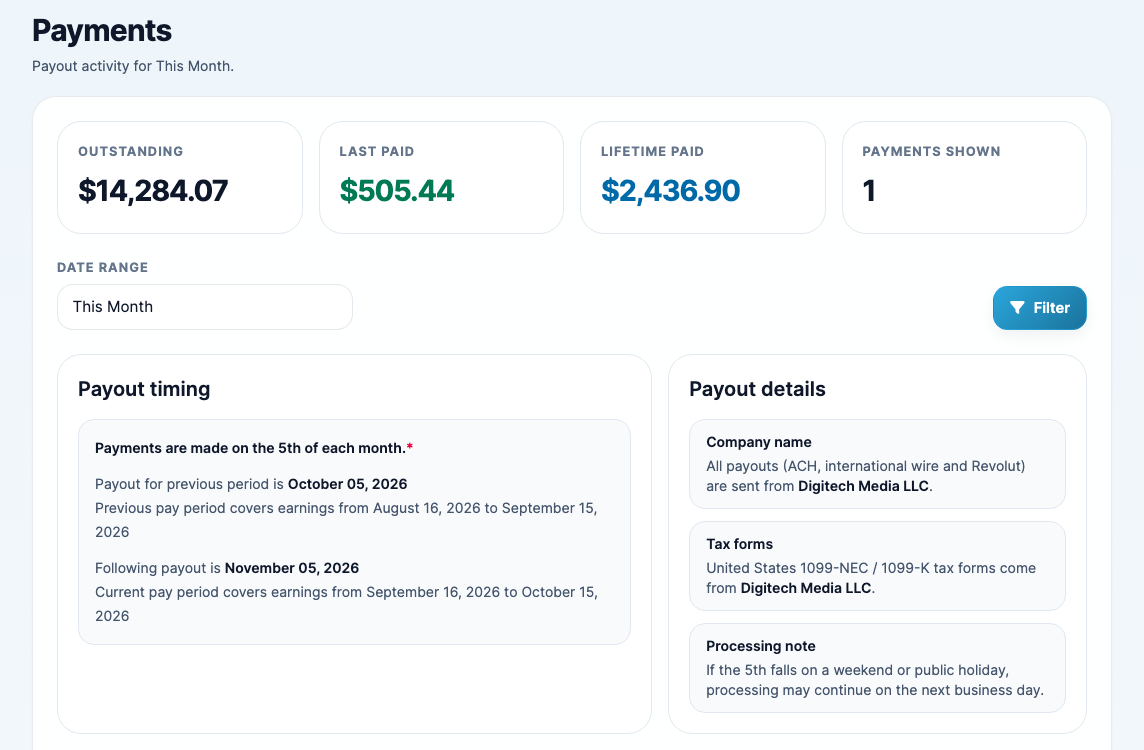
The top of the page shows what you're owed and what you've been paid:
- Outstanding: payouts that have been calculated but not sent yet.
- Last paid: your most recent payout.
- Lifetime paid: everything paid to you so far.
-
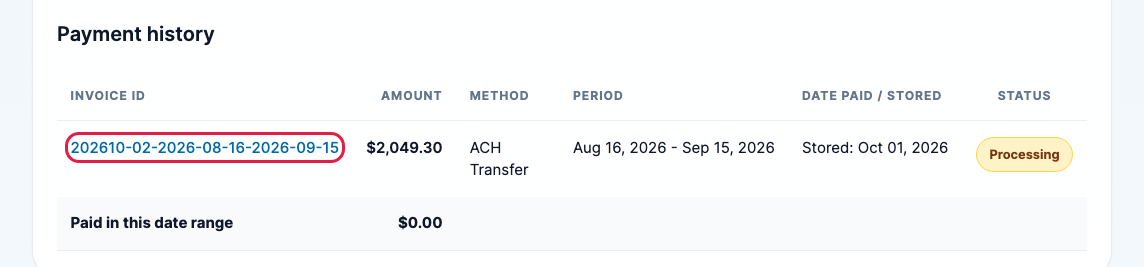
Under Payment history, each row is one payout, with its amount, payment method and pay period. The Status is Processing until the money is sent, then Paid. Use Date range above to look further back. Click an Invoice ID to see the full breakdown.
How your payout is calculated
-
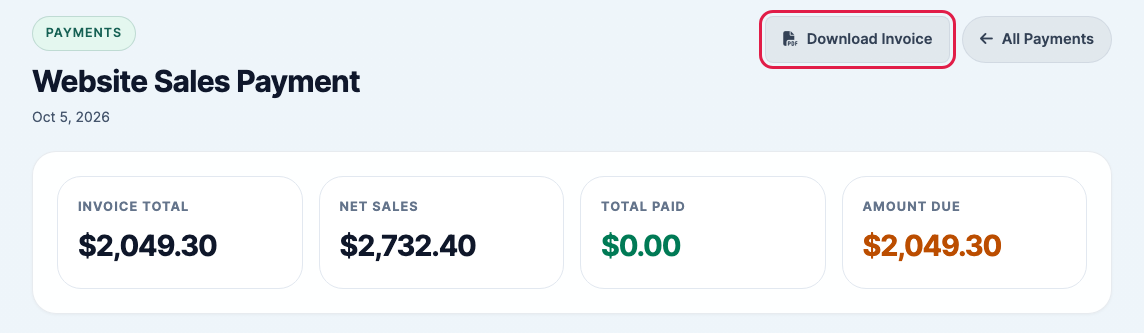
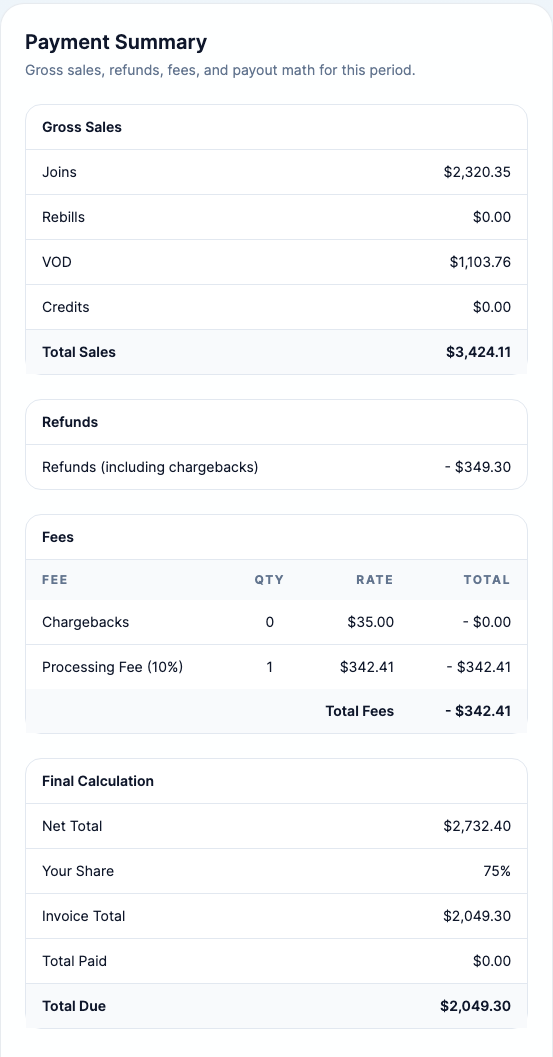
The payment page shows the Invoice total (your payout), Net total, what has been paid, and the Amount due. Click Download Invoice to save a PDF invoice for your records.
-
Payment Summary shows the math, step by step:
- Gross Sales: everything sold in the period, split into joins, rebills, video purchases (VOD) and credits.
- Refunds: money returned to members, including chargebacks.
- Fees: the processing fee (a percentage of sales) and a fee for each chargeback. If they apply, you'll also see a payment fee for your payout method, and email sends over your free monthly allowance. Age verification is free and adds nothing.
- Net Total: sales minus refunds, chargeback fees and the processing fee.
- Your Share: the payout percentage in your agreement, applied to the Net Total.
- Payment Fee and Email Sends (only if they apply): taken from your share.
- Invoice Total: what's left. This is the amount you're paid.
Choose how you're paid
Your payment method sets the fee and the smallest amount that can be sent:
- ACH Transfer (US bank accounts): $5.00 fee, $25 minimum.
- International Bank Wire (outside the US): $25.00 fee, $100 minimum.
- Revolut (US and international): free, no minimum.
- Click your name in the top right corner, then click Profile.
-
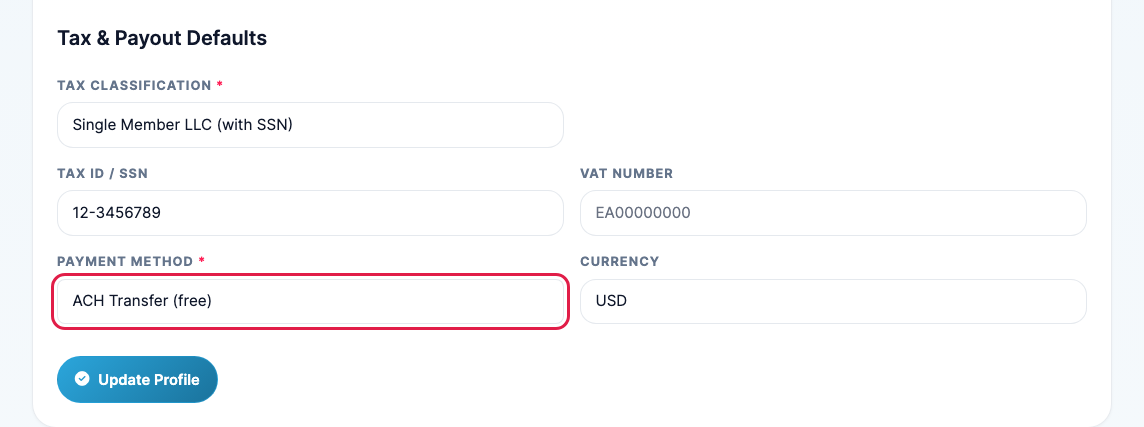
On the Profile tab, under Tax & Payout Defaults, choose your Payment Method. The fee is shown next to each one. Click Update Profile.
-
Click the Payment Info tab and fill in the details for that method, such as your bank account and routing numbers. Set a Minimum Payout Amount if you'd rather be paid less often in larger amounts. Click Update Billing.
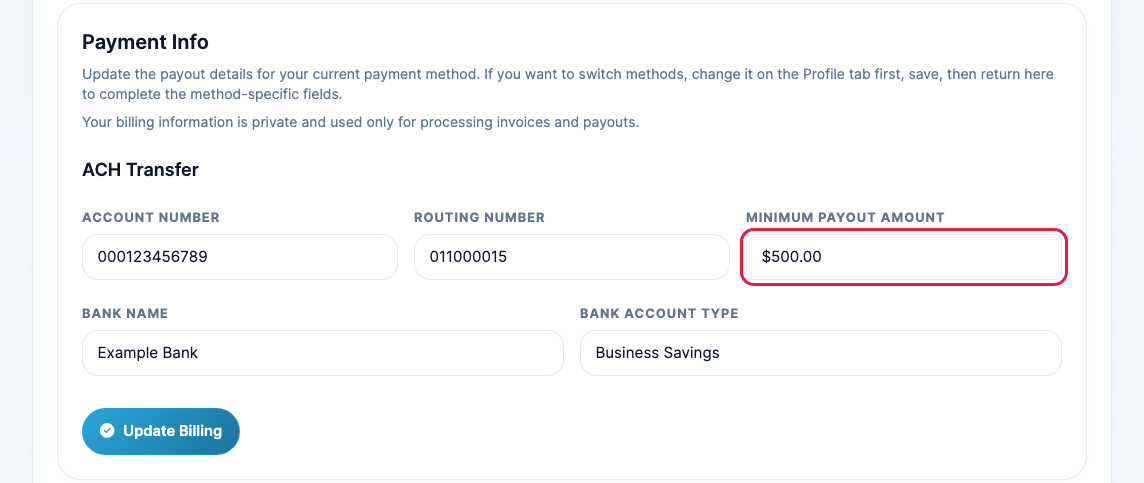
If a payout is below your minimum (or your method's minimum), it isn't sent that month. It's held and added to a later payout once your balance reaches the minimum, and no payment fee is charged on a payout that's held.
Tip: make payout changes before the 16th, when the next payout is prepared. Our team is notified whenever you update your Payment Info.