Support / Security & Compliance
California Upload Statement
From January 1, 2027, a new California law requires two things from anyone who uploads adult content: a confirmed email address, and a statement for every video that everyone in it is an adult who agreed to be filmed and to have it shared online. We ask every store for both, wherever you are.
Good to know: each login confirms its own email, so store owners and teammates each confirm theirs. Confirming takes one click on a link we email you. From January 1, 2027, a login without a confirmed email can't use the dashboard until it confirms. Your statements and email confirmations are kept for 7 years, as the law requires.
Confirm your email
Updated Nov 3, 2026
-
Until your email is confirmed, a yellow banner shows at the top of every dashboard page. Click Send link. The banner tells you where the link was sent.

-
Open the email Confirm your PaysiteManager email and click Confirm My Email. You don't need to be logged in. The banner is gone the next time you open the dashboard.
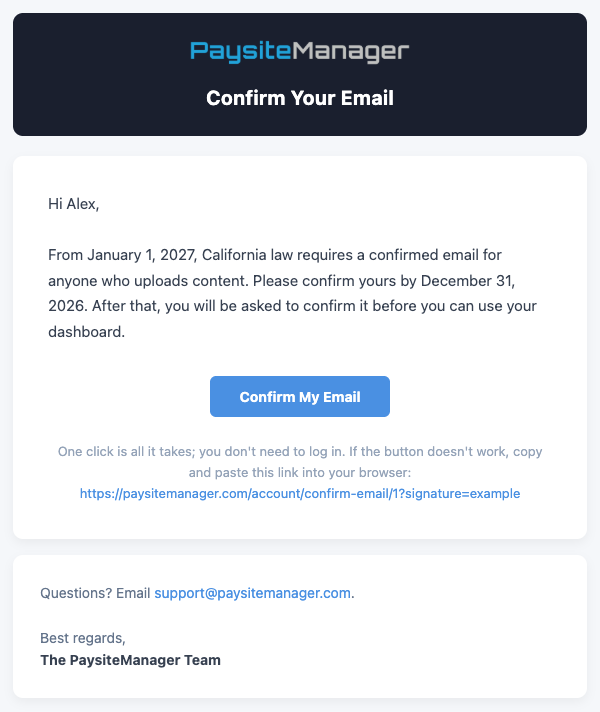
A link from Send link works for 30 days. If it has expired, log in and click Send link again for a new one. On December 1, 2026 we email a link to every owner and teammate who hasn't confirmed yet; that link works until January 31, 2027.
Teammates are confirmed when they accept their invite, because the invite went to their inbox. New stores get a confirm link while applying. If you don't see the banner, your email is confirmed and there's nothing to do.
Wrong email? Click Wrong email? Update it in the banner, change your email on your profile and save. We send a confirm link to the new address straight away. Until you click it, your email shows as not confirmed.
If your email isn't confirmed by January 1
Updated Nov 3, 2026
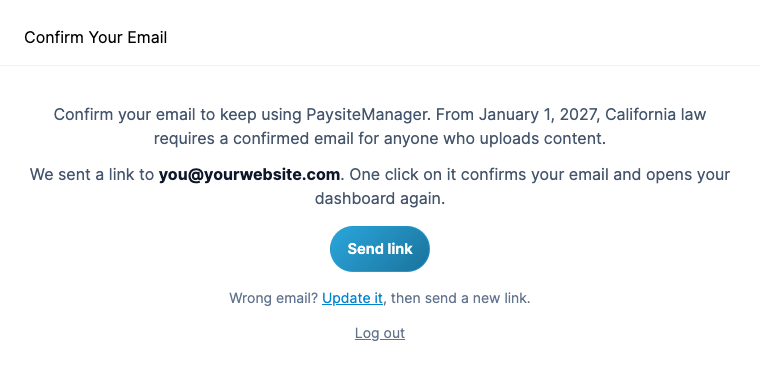
From January 1, 2027, every dashboard page takes a login without a confirmed email to the Confirm Your Email page instead. From there you can click Send link, use Update it to fix your email, or Log out. One click on the emailed link opens your dashboard again.
Give the statement when you add content
Updated Nov 3, 2026
-
When you add a content set, scroll to California Upload Statement at the bottom of the form and tick the statement. It reads: "I declare under penalty of perjury under the laws of the State of California that, for every person who appears in this content: they were 18 or older when it was created; they consented to being depicted in it; and they consented in writing to its distribution, including online distribution such as this upload."
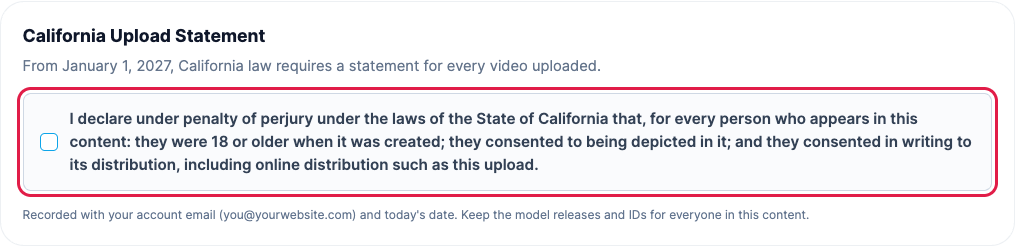
- Click Add Content Set. A new content set can't be saved without the statement: the form asks you to confirm the California Upload Statement at the bottom of the form.
The statement is recorded with the email of the person who is logged in and the date. Once a content set has a statement, its edit page shows who gave it and when, instead of the checkbox. Only tick it when it is true, and keep the model releases and IDs for everyone in the content.
Content you added before the statement
Updated Nov 3, 2026
Content sets added before the statement existed don't need one, and they stay live. When you edit one, the same section offers the statement. Ticking it and saving records it now, which helps show the video was checked.
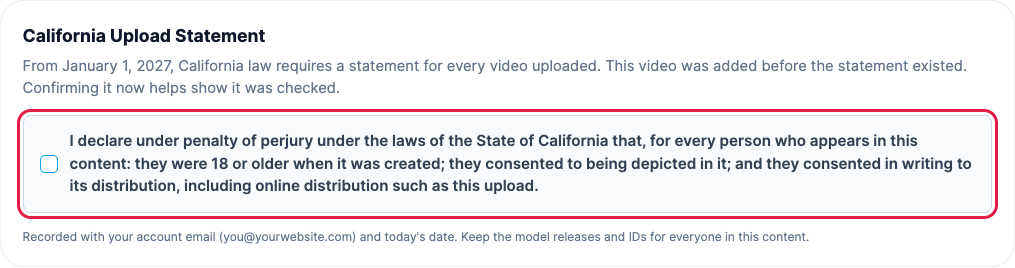
A content set added on or after January 1, 2027 can't go live without a statement. If one is missing, the message says Add the California Upload Statement before activating: edit the content set, tick the statement at the bottom and save.
Next steps
Updated Nov 3, 2026
- Confirm your email now, so January 1 changes nothing for you.
- Ask each teammate to confirm theirs. See Inviting Teammates.
- Questions about the law or your content? Email [email protected].