
Inviting Teammates
Teammates are people who help you run your store, such as an assistant, an editor or a model who manages their own content. Each teammate gets their own login, and you choose which parts of your dashboard they can use. You can change their access or remove them at any time.
Good to know: only you, the store owner, can manage your team. Teammates can never see or change your team, your profile or your payout details. Platform notifications and the store activity feed are yours only too.
Invite a teammate
-
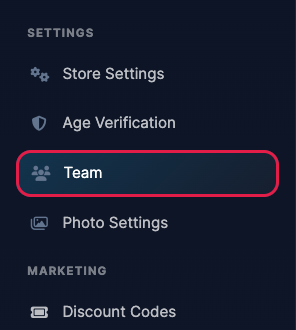
Log in to your dashboard and click Team under Settings in the left menu.
- Under Invite a Teammate, enter their Name and Email. The email address can't already be used by another PaysiteManager account.
-
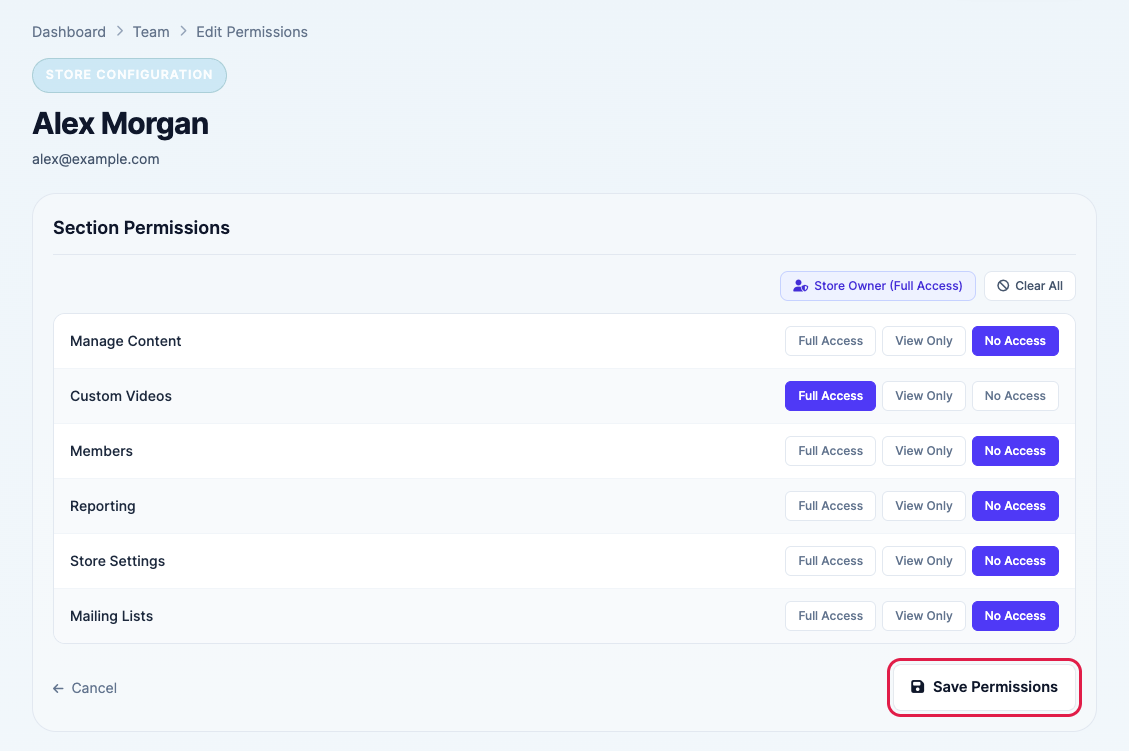
Choose an access level for each section of your dashboard:
- Full Access: they can see and change everything in that section.
- View Only: they can look but not make changes. Buttons for adding, editing and deleting are hidden.
- No Access: the section is hidden from them.
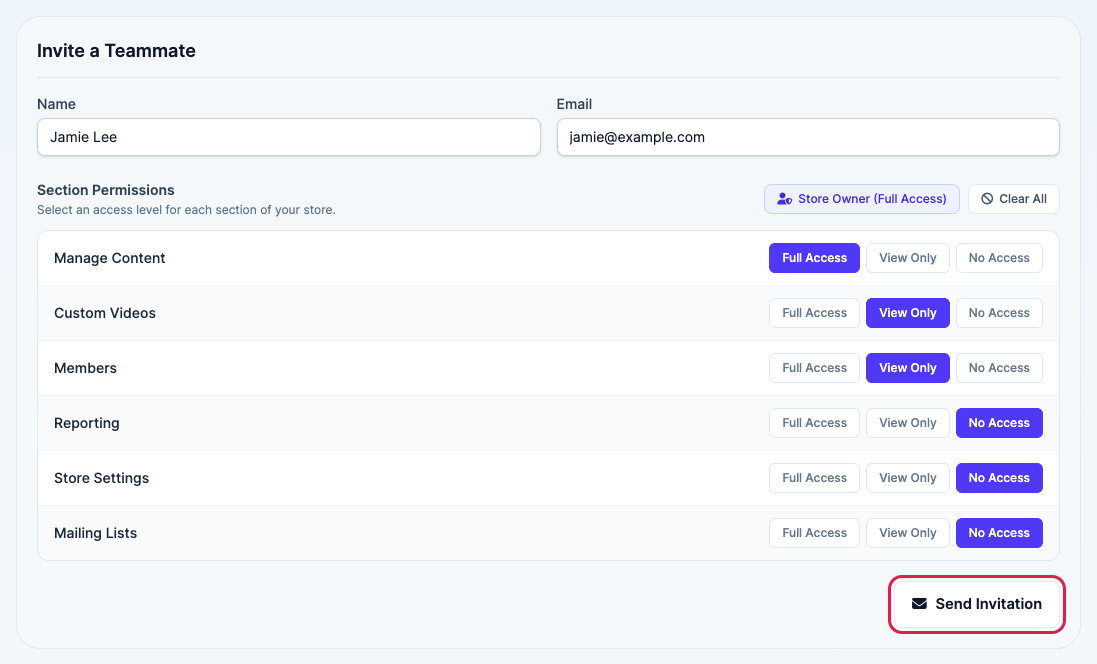
- Click Send Invitation. Your teammate gets an email with a link to join, and they appear under Current Team as Pending until they accept.
What your teammate does
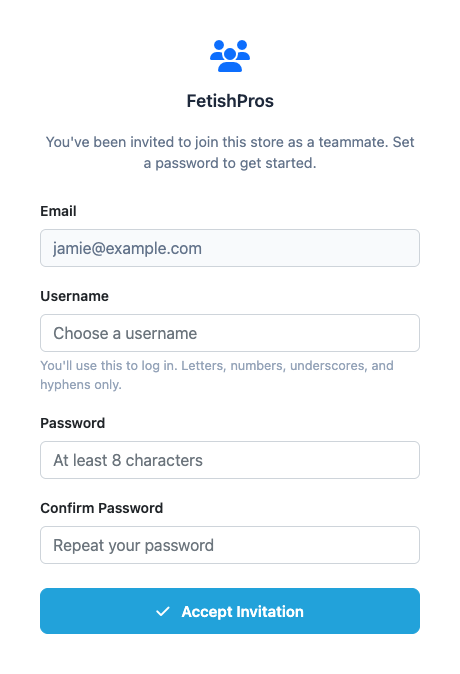
When your teammate opens the link in their email, they choose a Username and a Password (at least 8 characters) and click Accept Invitation. They are logged straight in and only see the sections you gave them access to. After that they log in from the normal login page with their own username and password.
Change access or remove a teammate
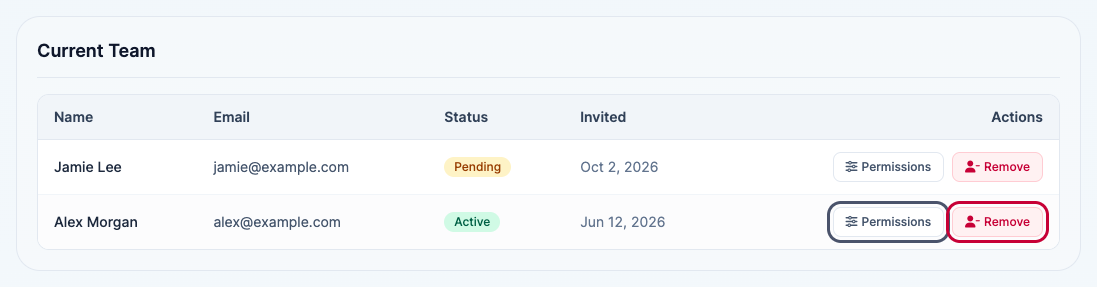
Your team is listed under Current Team, with each person's status (Pending or Active) and the date you invited them.
-
To change what someone can access, click Permissions next to their name, choose new access levels and click Save Permissions.
- To remove someone, click Remove and confirm. Their login stops working straight away. This also cancels an invitation that hasn't been accepted yet. You can invite the same email address again later if you need to.