Rewarding Members with Credits
Member Incentives rewards your loyal members with free credits every time their membership renews (rebills). Members spend credits on your videos and photo sets, so rewards give them a reason to keep their membership and buy more from you. You choose how many credits to give and set a monthly limit per member.
Good to know: Member Incentives works on stores that sell credits, and it is off until you turn it on. If you don't see it in your Store Settings, contact support.
How rewards work
- You create rules that say which rebill earns a reward and how many credits it earns (5 to 30 credits).
- A rebill between two of your rules earns the lower rule's reward.
- After a member passes your highest rule, they keep earning that reward on every rebill after it.
For example, with a rule of 10 credits at rebill 3 and 20 credits at rebill 5: rebills 1 and 2 earn nothing, rebills 3 and 4 earn 10 credits each, and rebill 5 and every rebill after it earns 20 credits.
Reward credits expire 45 days after they are given, and members get an email reminder before they expire. Credits you gift to members by hand also expire after 45 days.
Set up rewards
-
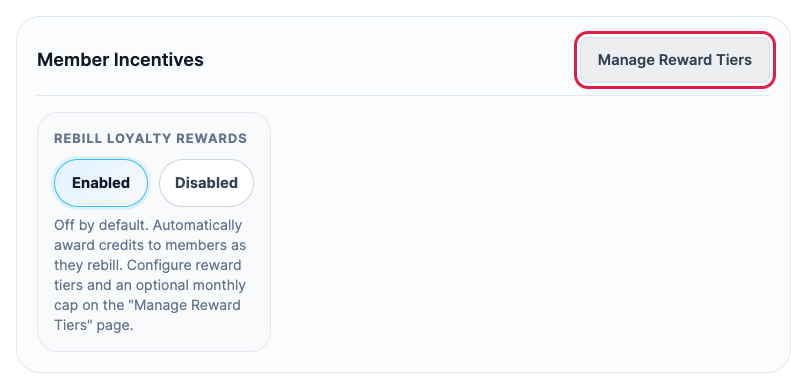
Click Store Settings in the left menu. On the General tab, find Member Incentives and click Manage Reward Tiers.
-
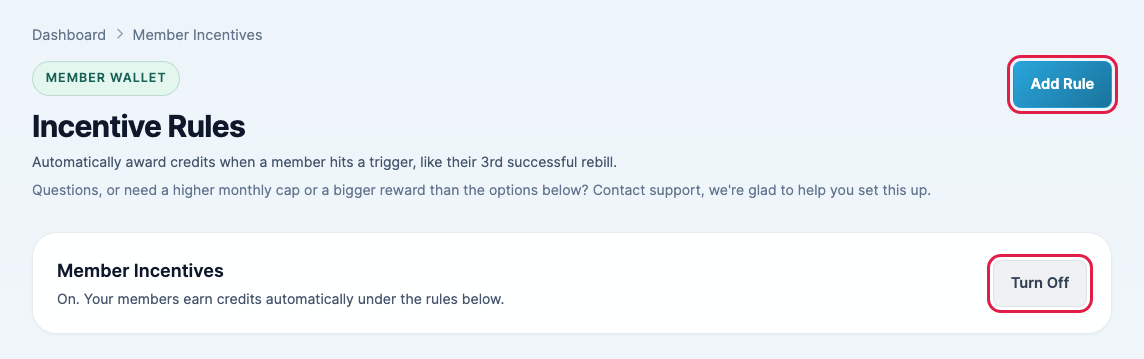
On the Incentive Rules page, click Add Rule. The Member Incentives box shows Turn On while rewards are off and Turn Off while they are on.
-
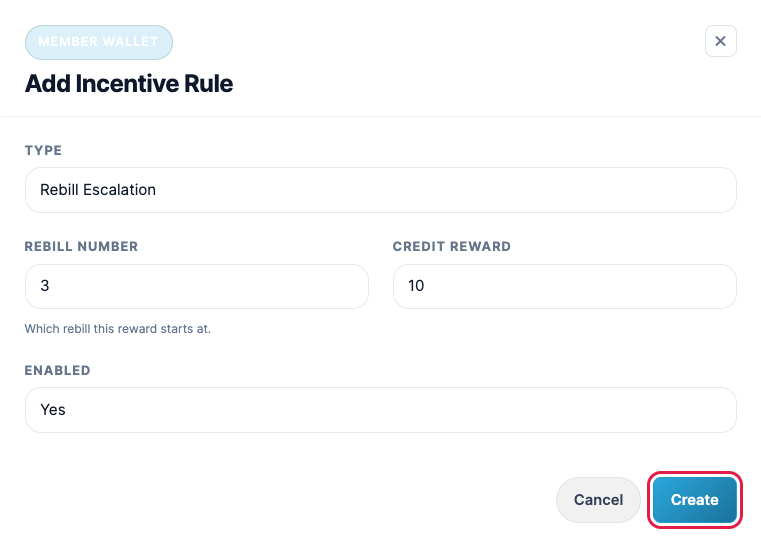
Enter the Rebill Number the reward starts at, choose the Credit Reward, leave Enabled set to Yes, and click Create. Add more rules the same way to give bigger rewards to longer members.
-
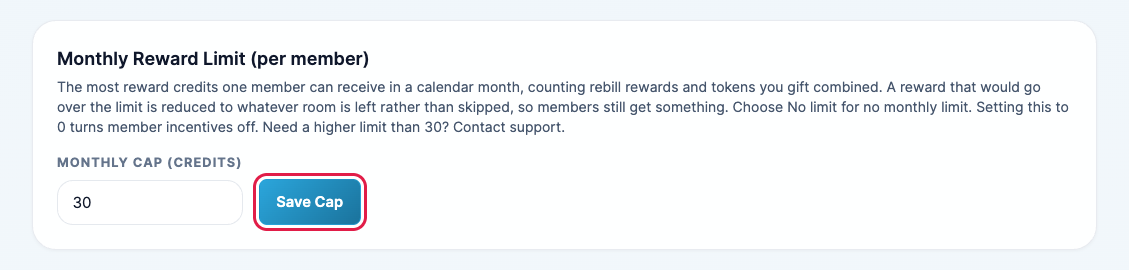
Under Monthly Reward Limit (per member), choose the most credits one member can get in a calendar month, or No limit, and click Save Cap. The limit counts rewards and credits you gift together. If a reward would go over the limit, the member gets whatever room is left instead of nothing.
- If rewards are off, click Turn On in the Member Incentives box.
Important: setting the monthly limit to 0 turns Member Incentives off. Need a higher limit or a bigger reward than the options offer? Contact support.
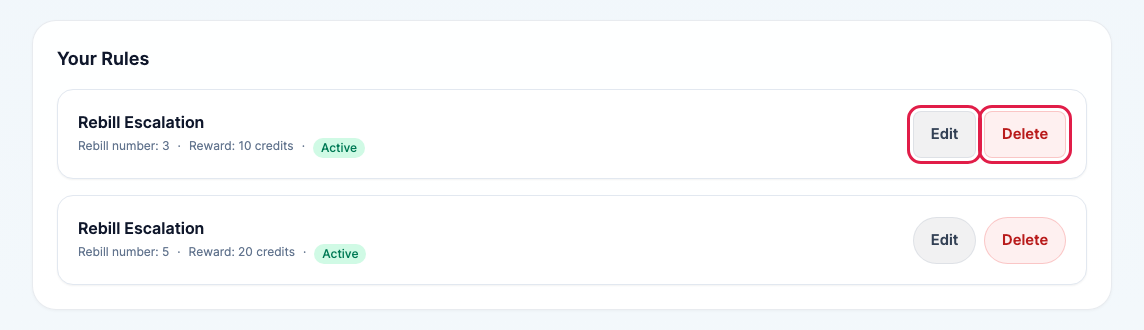
Change or remove a rule
Your rules are listed at the bottom of the page with their rebill number and reward. Click Edit to change a rule, or Delete to remove it. To pause a rule without deleting it, edit it and set Enabled to No.