Support / Getting Started
Domain Contact Screenshot
Before your website can take payments, our billing provider needs to see that your domain is registered to our company contact. This is Step 2 of the PaysiteManager Onboarding - Next Steps email we send after your walkthrough. It takes about five minutes: change the contact details at your domain registrar, take a screenshot, and send it to us.
Good to know: you only need the new contact details for the screenshot. You can change them back as soon as you've taken it.
The contact details to use
Updated Oct 25, 2026
Log in to the company you bought your domain from (your registrar) and change the domain's contact information to:
- First Name: Domain
- Last Name: Admin
- Company Name: Digitech Media, LLC
- Address: 6702 Maybole Pl
- City: Temple Terrace
- State: FL (Florida)
- Zip/Postal Code: 33617
- Country: United States
- Phone Number: 702-337-2886
- Email: leave your own email address. Don't change it, or you'll stop getting your registrar's renewal and security emails.
If your registrar asks which contacts to update, apply the change to all of them (Registrant, Administrative, Technical and Billing), then save.
Where to change it at your registrar
Updated Oct 25, 2026
Each registrar keeps its own up-to-date instructions:
- GoDaddy: edit my domain contact info
- Namecheap: change the contact information for my domain
- HostGator: update your WHOIS information
With any other registrar, look for Contact information, WHOIS or Registrant on the domain's settings page.
Take the screenshot
Updated Oct 25, 2026
Once the new details are saved, go back to the domain's page at your registrar. Take one screenshot that shows both the domain name and the new contact details. If they don't fit on one screen, two screenshots are fine.
- Mac: press Shift + Command + 4, then drag over the area you want. The screenshot is saved to your desktop.
- Windows: press Windows key + Shift + S, then drag over the area you want. Click the preview that appears to save it.
- Phone: use your phone's normal screenshot buttons.
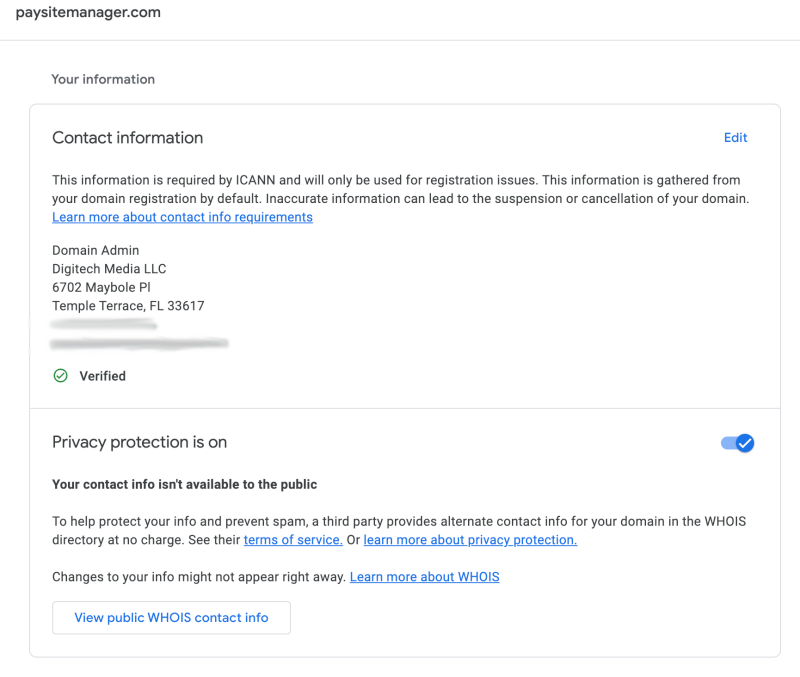
Your screenshot should look like this example. Your own email address can be blurred or cropped out.
Send it to us
Updated Oct 25, 2026
Reply to your PaysiteManager Onboarding - Next Steps email with the screenshot attached, or email it to [email protected] with your domain name in the subject. After that you can change your domain's contact details back.