Platform Notifications
PaysiteManager uses notifications to tell you about things that affect your store: new features, planned maintenance, policy updates and other announcements. This page explains where they show up and what you can do with them.
Where notifications appear
-
The bell: the bell icon at the top of every page shows how many notifications you haven't read yet. Click it to open your Notifications page.

-
Banners: important notices, such as planned maintenance, can also appear as a banner at the top of your dashboard. Click the × to close it. This marks the notice as read; you can still find it on your Notifications page.

-
Notices you need to confirm: some notices open in a window on top of your dashboard, and you need to respond before you can carry on. Read the notice and click I Understand. If several are waiting, they appear one after another.
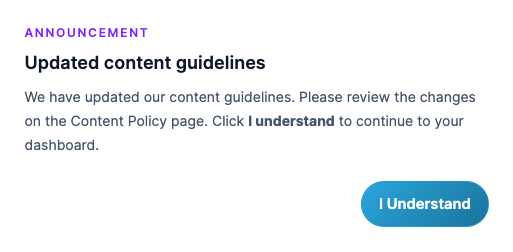
Some notices offer you a new feature instead. They show two buttons: one to turn the feature on and one to say no (the wording depends on the notice). If you choose to turn it on, the feature is switched on for your store straight away.
Manage your notifications
Open your Notifications page by clicking the bell. Each notification shows its type (General, Maintenance, Feature, Urgent or Announcement), the date it was sent and the full message. New ones are marked Unread.
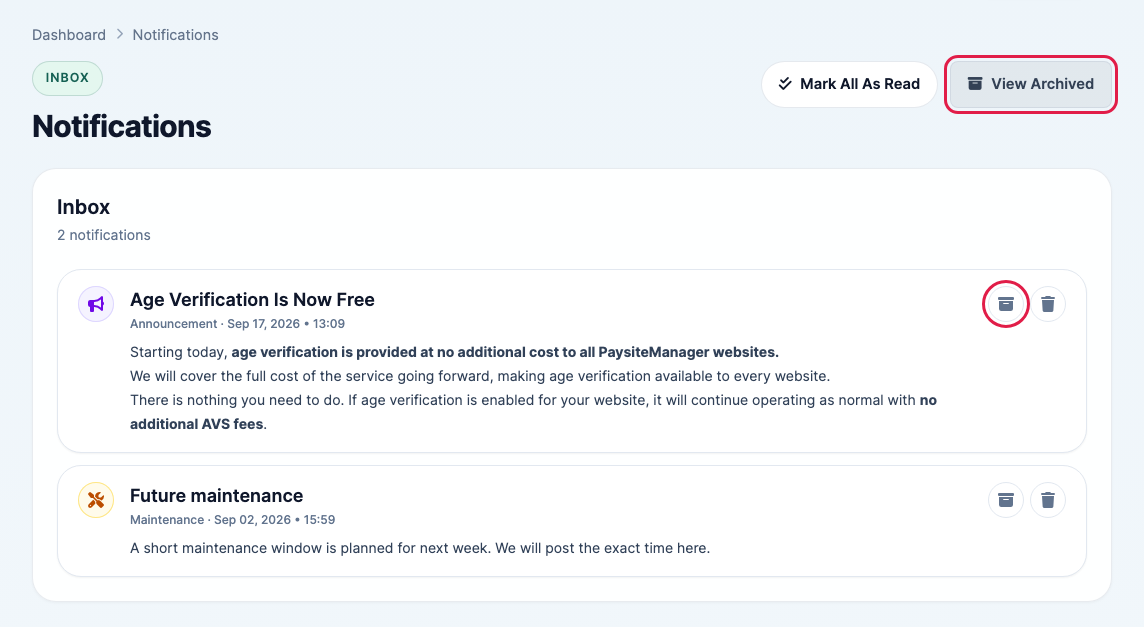
- Mark All As Read clears the unread count on the bell.
- The archive button (box icon) moves a notification out of your inbox without deleting it.
- The delete button (trash icon) removes it from your list permanently.
- View Archived shows everything you have archived.
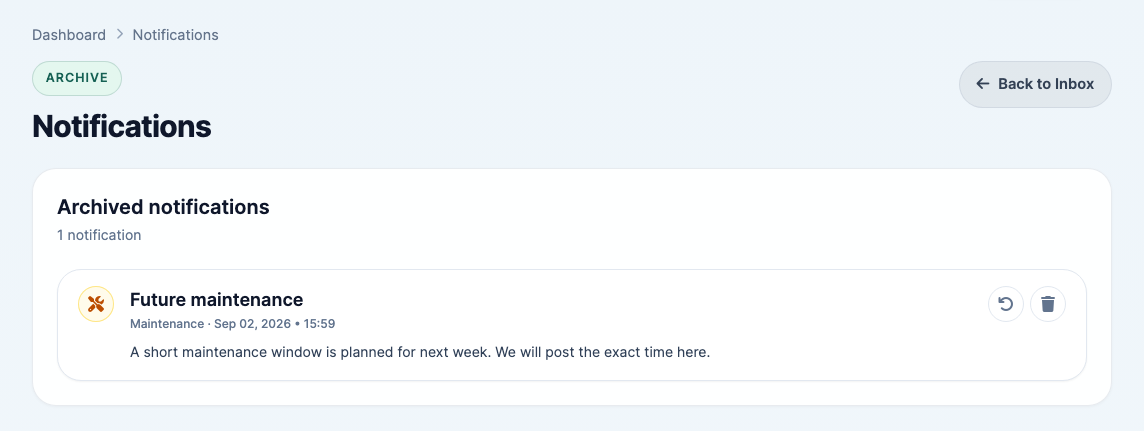
In your archive, click the restore button (circular arrow) to move a notification back to your inbox, or Back to Inbox to return.
Good to know: archiving or deleting a notification only changes your own list. It doesn't affect anyone else.