Support / Content
Preview Images from Your Video
Instead of uploading an image, you can take a still straight from a content set's video and use it as a preview image or as the cover your video player shows before someone presses play. You pick the exact frame, choose where it goes, and crop it on the same page.
Good to know: the content set needs a source video or a preview video. Teammates need edit access to Content to save a screenshot.
Open Screenshot from video
Updated Oct 31, 2026
-
Open the content set, then go to its Preview Images. Click Screenshot from video at the top of the page.

-
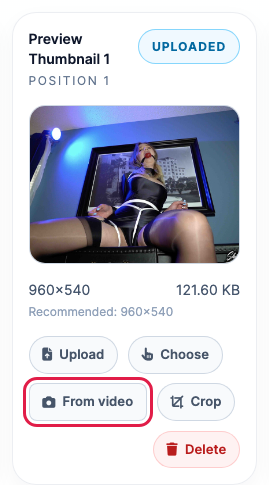
Or click From video on the image you want to replace. The page then opens with that image already chosen. Every preview image has it except the Animated GIF.
-
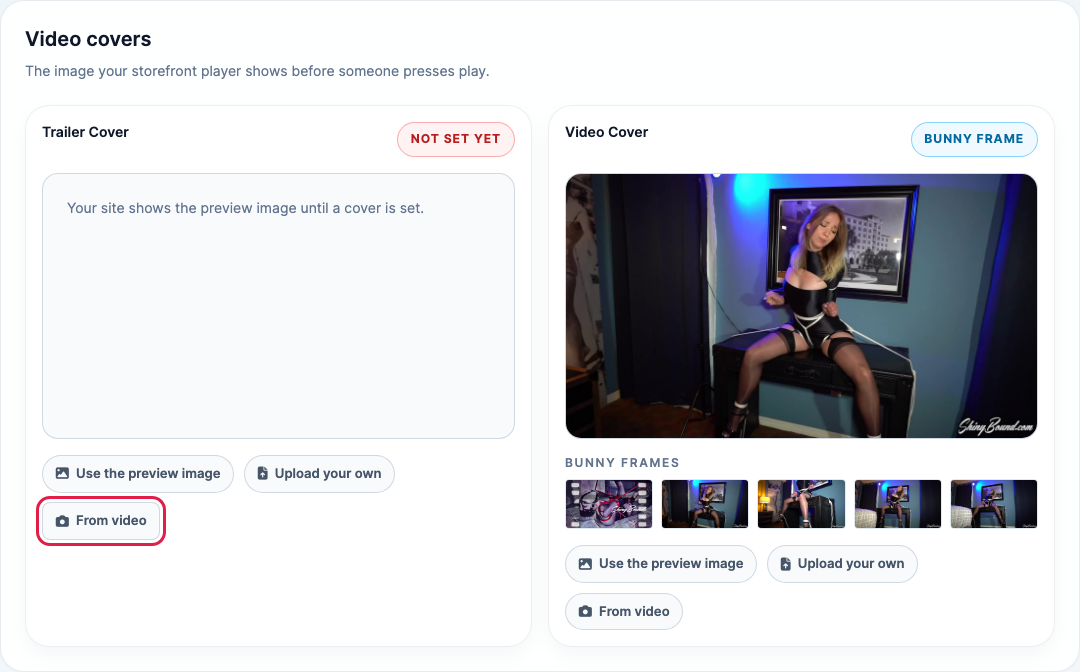
The Trailer Cover and Video Cover cards have a From video link too. Choosing a cover also picks that cover's own video: the trailer for the Trailer Cover, the full video for the Video Cover.
Find the frame
Updated Oct 31, 2026
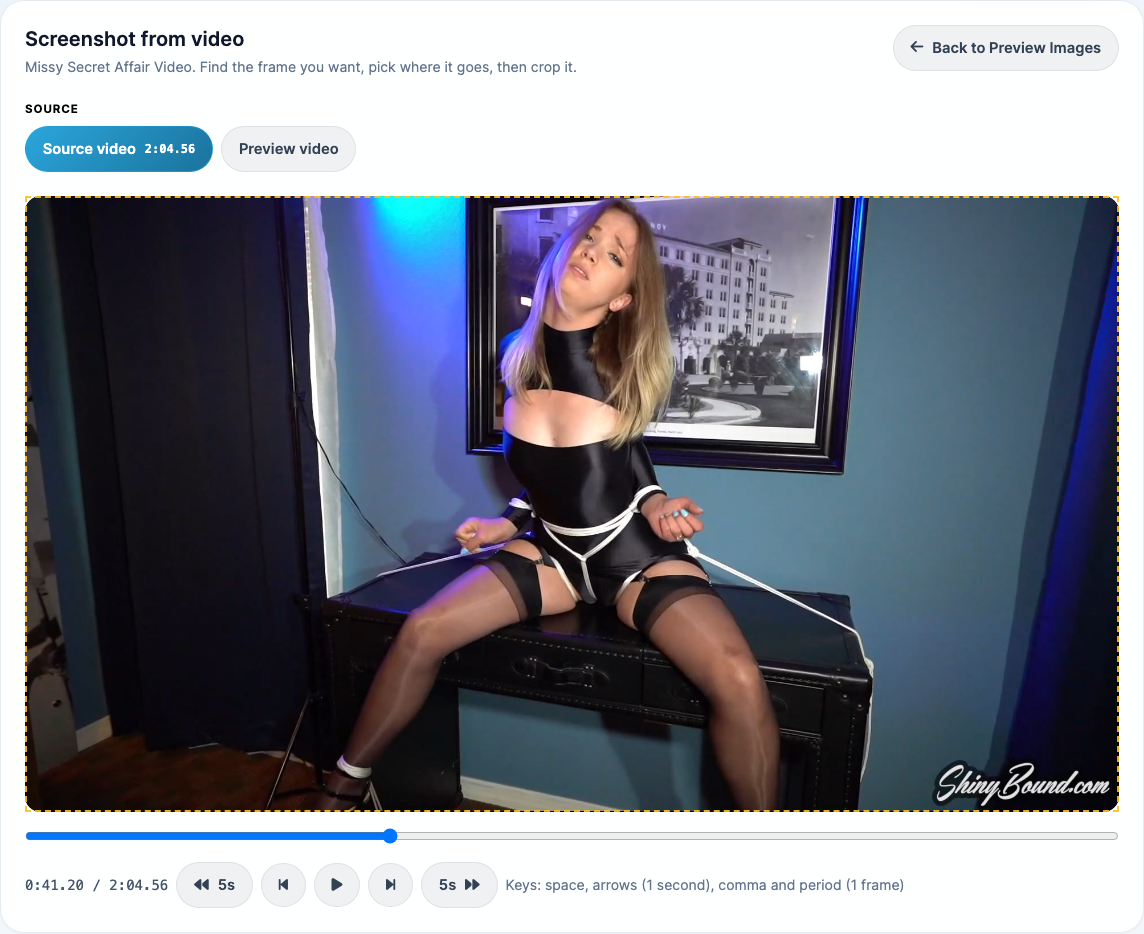
- Under Source, choose Source video (your full video) or Preview video (your trailer). Only the videos the content set has are shown.
-
Play the video or drag the slider to the moment you want. The dashed box on the video shows roughly what the chosen image's shape keeps.
-
Fine-tune with the buttons under the video, or with your keyboard:
- Space: play or pause.
- Left and right arrows: back or forward 1 second.
- Comma and period: back or forward 1 frame.
- The 5s buttons jump 5 seconds.
If the video doesn't play, your browser may not support its format. Try Safari, or upload an image instead.
Choose where it goes
Updated Oct 31, 2026
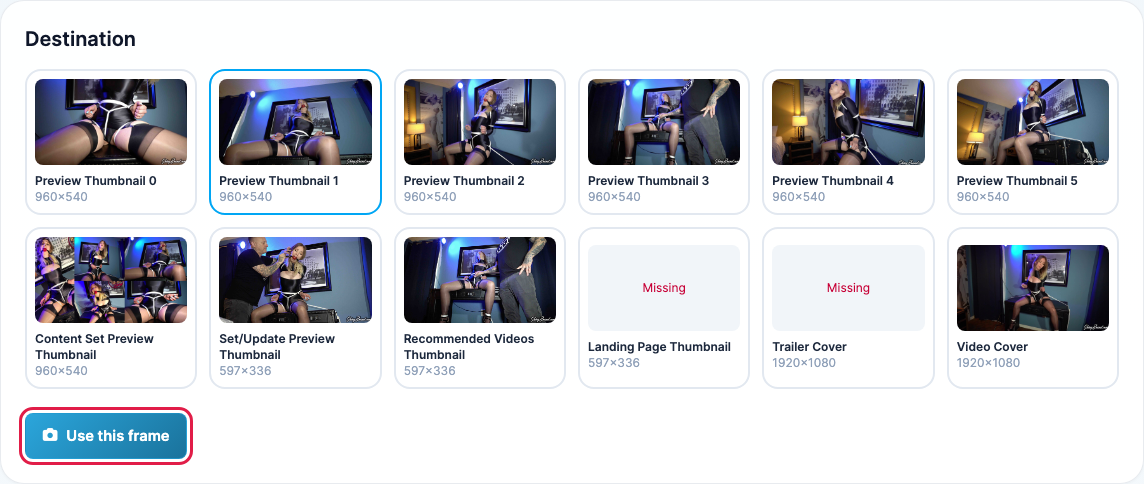
- Under Destination, click the image you want to replace. Each card shows the current image and the size it's saved at; Missing means that spot has no image yet.
-
Click Use this frame.
Crop and save
Updated Oct 31, 2026
-
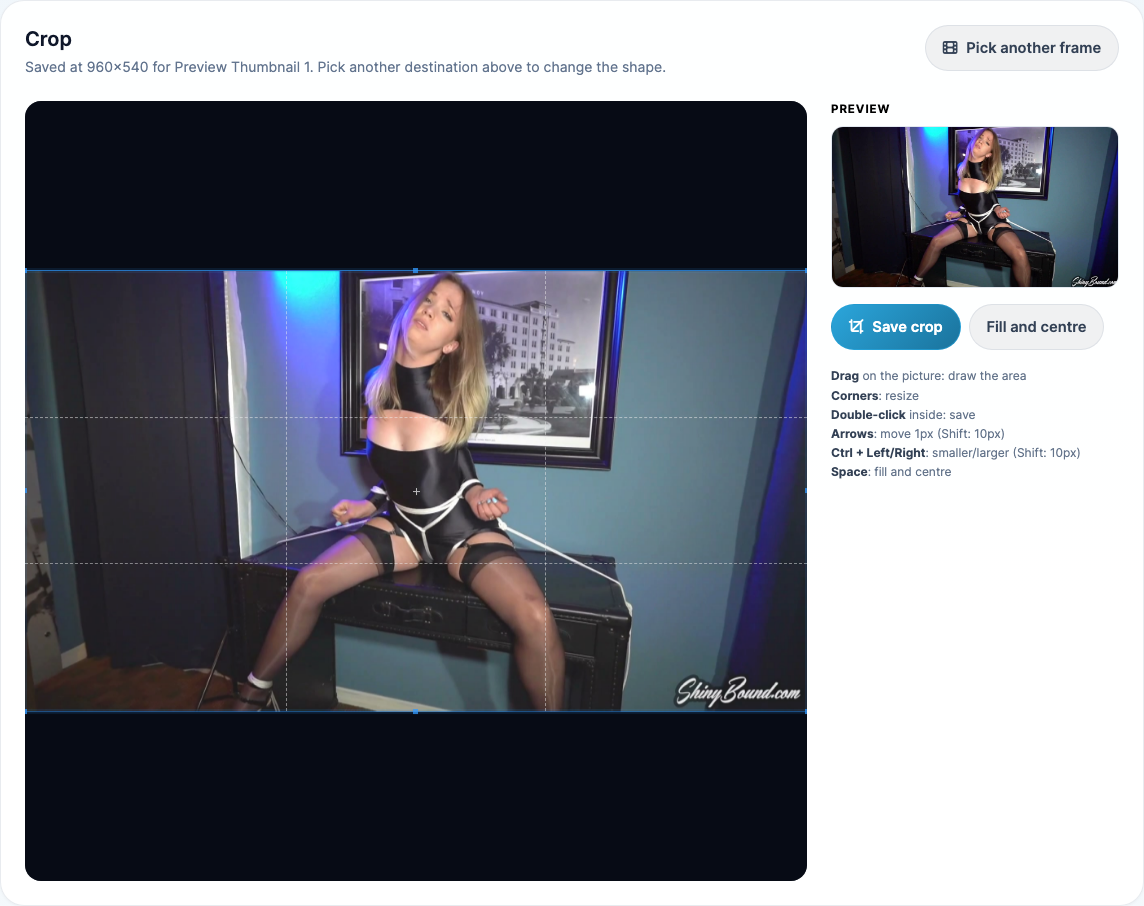
The frame opens in the cropper on the same page, with the box already set to the right shape. The Preview on the right shows exactly what will be saved.
-
Drag the box or its corners to frame the shot. You can also use your keyboard:
- Arrows: move the box 1 pixel (hold Shift for 10).
- Ctrl + Left or Right: make the box smaller or larger.
- Space or Fill and centre: make the box as large as it can be, in the middle.
- Click Save crop, or double-click inside the box. You go back to Preview Images with the new image in place. A new cover shows on your video player within a few minutes.
Not the right frame? Click Pick another frame to go back to the video. To put the frame somewhere else, click another card under Destination while cropping; the box changes to that image's shape.
The same cropper everywhere
Updated Oct 31, 2026
The cropper works the same way wherever you crop an image: the Crop link on a preview image, the crop window that opens after you upload a preview image, and cropping a model's or a content filter's picture. Drag, double-click to save, and the same keys all work there.