Support / Content
Editing Content
You can change any content set after you've added it: its title and description, price, dates, or whether members get it. Most changes show on your site as soon as you save.
Find the content set
Updated Oct 25, 2026
-
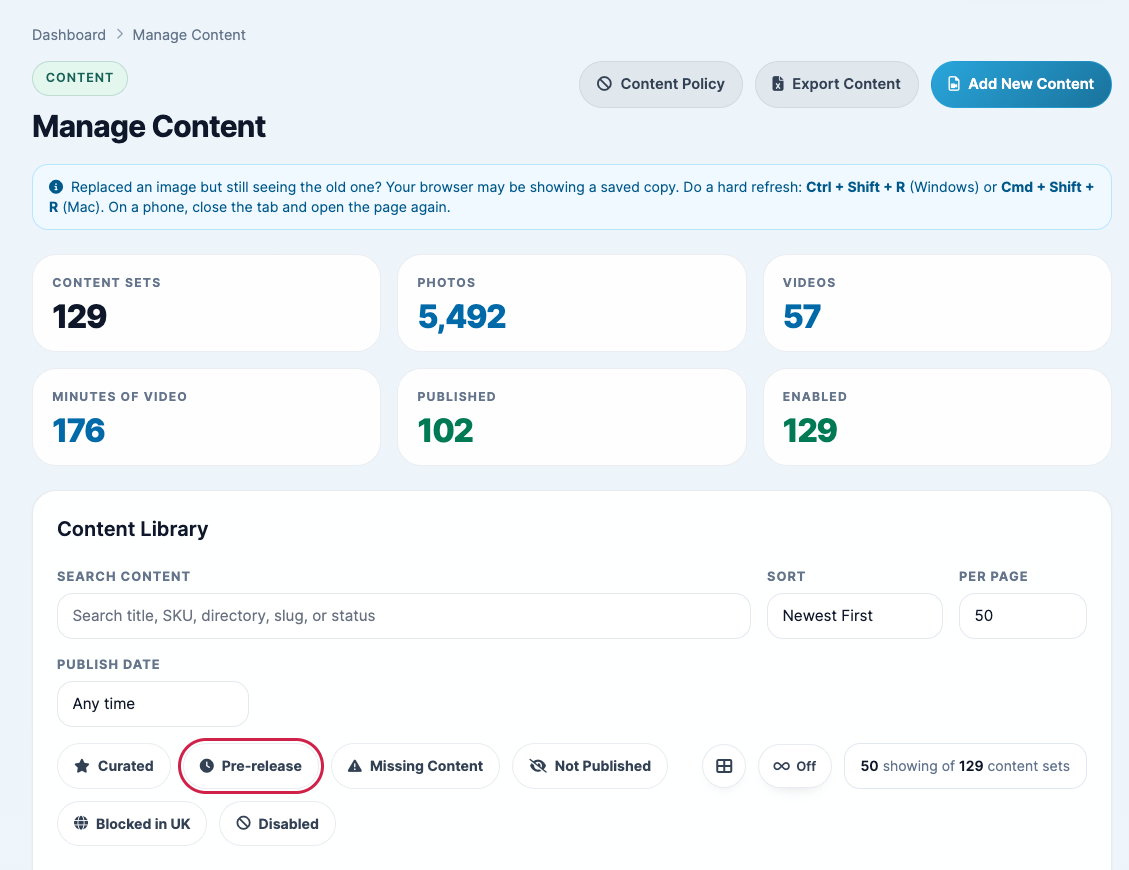
Click Content in the left menu. Use Search Content to find a content set by title, or the filter buttons to narrow the list. Pre-release appears when you have content waiting to join your members area; Not Published and Missing Content list content that isn't live yet.
-
Click the content set to open it, then click Edit.

Make your changes
Updated Oct 25, 2026
- The edit form has the same sections as when you added the content set (see Adding Content). Change what you need.
-
Click Save Changes.

When changes take effect
Updated Oct 25, 2026
- Title, description, tags, models and categories: straight away.
- Price: straight away. Choosing Not Available For Purchase stops individual sales; members still get it if it's in your members area.
- Publish Date & Time: moving the date of a live content set into the future takes it off your site until that time. If it's Pre-release, check Joins the members area on too: on the edit form it keeps the date you entered. (Moving a content set on the Calendar moves its Pre-release date with it.)
- Take Off Site On: a date that has already passed takes the content set off your site as soon as you save.
- Members Area: straight away, or on the Pre-release date you choose.
- Enabled: unticking it hides the content set everywhere as soon as you save.
Check how a content set reaches members
Updated Oct 25, 2026
A content set's page shows how members get it: Membership, Pre-release or Purchase Only. A Pre-release content set also shows the date it joins your members area.

Still need help?
Our US-based team answers every ticket.