Why Isn't My Content Live Yet?
New content goes live on your site at its publish date, once all of its files have finished processing and passed a final check. If something is still missing, it waits. This guide shows how to see what's holding a content set back and how to fix each problem.
Good to know: processing usually takes a few minutes, but large videos can take longer. You don't need to do anything while a content set shows Processing.
Find content that isn't live
-
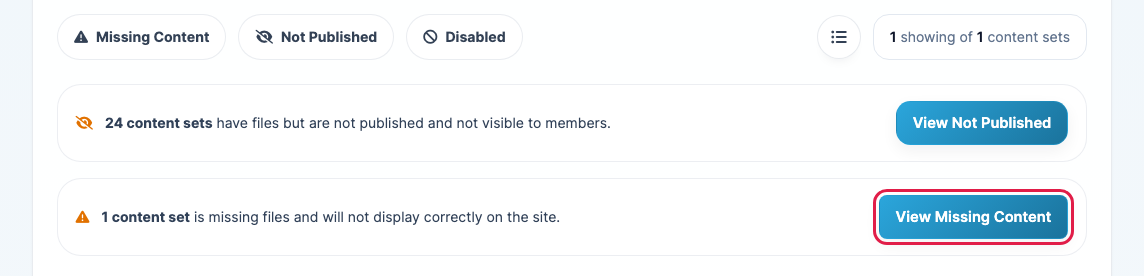
Click Content in the left menu. If anything has a problem, a notice above your content library says how many content sets are affected. Click View Missing Content to list content that's missing files, or View Not Published to list content that's ready but not published. The Missing Content, Not Published and Disabled buttons do the same.
-
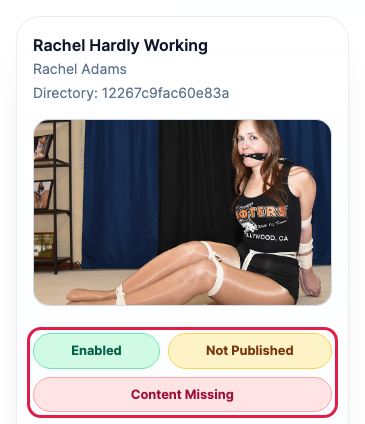
Each content set shows its status:
- Enabled or Disabled: disabled content never goes live. To turn it on, click Edit and tick Enable this content set on the website.
- Published: live on your site.
- Scheduled: its Publish Date & Time is in the future. It goes live on its own at that time.
- Not Published: its publish date has passed but it isn't live yet, usually because of a missing file.
- Expired: it has passed its expiry date and is no longer shown.
- Content OK or Content Missing: whether every file it needs is in place.
Fix what's missing
These are the problems the final check looks for, and what to do about each one. The email you get about stuck content (see below) lists the exact problems for that content set.
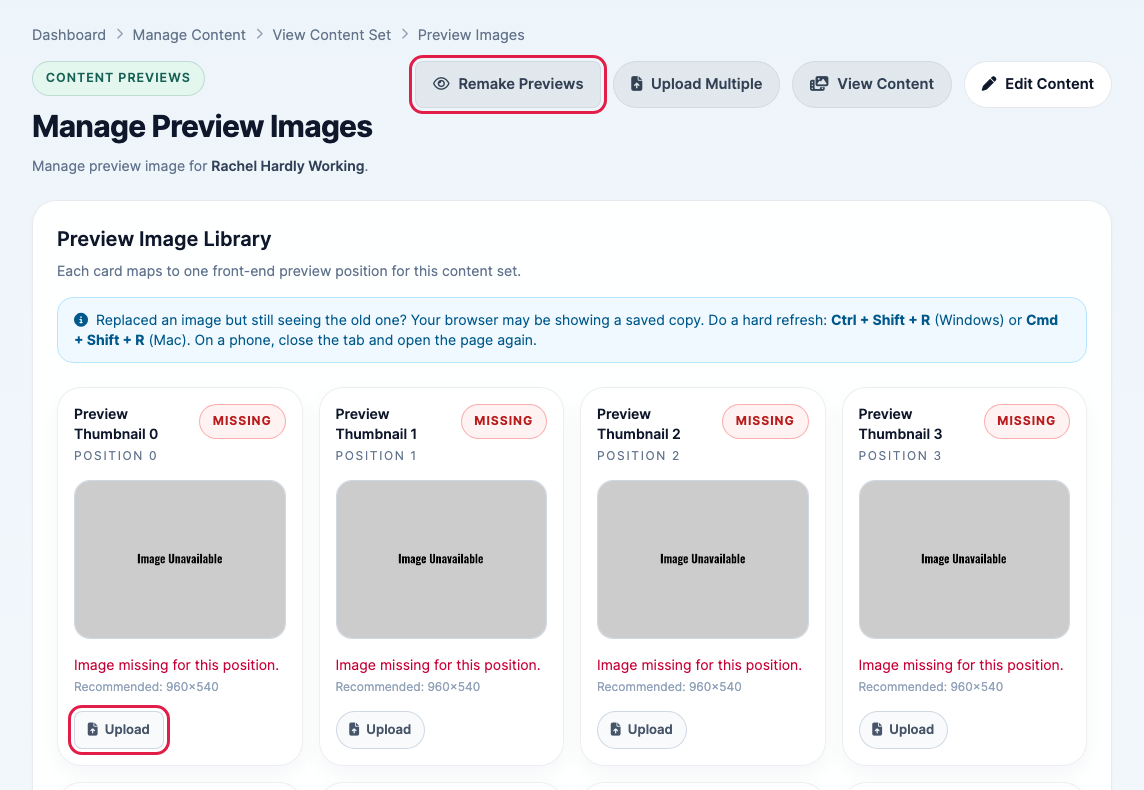
- Preview thumbnails missing: your site's layout needs a set number of preview images. Open the content set's Preview Images page and click Remake Previews to create them automatically, or click Upload on each card marked Missing.
- Animated GIF missing: if your site uses GIF previews, upload one on the Animated GIF card of the Preview Images page.
- Photo zip missing, or photo count doesn't match: your photos are usually still being processed. If this lasts more than a few hours, re-upload the missing photos.
- Source or download video missing: the video didn't upload completely. Re-upload your video file.
- Streaming video or trailer not ready: it's still being processed, or its upload failed. If it isn't ready within a day, re-upload it or contact support.
- More than one video found: contact support so we can remove the extra file.
You don't need to do anything else once it's fixed. Content that isn't live is checked again automatically when processing finishes and every few hours, and also whenever you save the content set. It then goes live at its publish date.
Get told when content is stuck
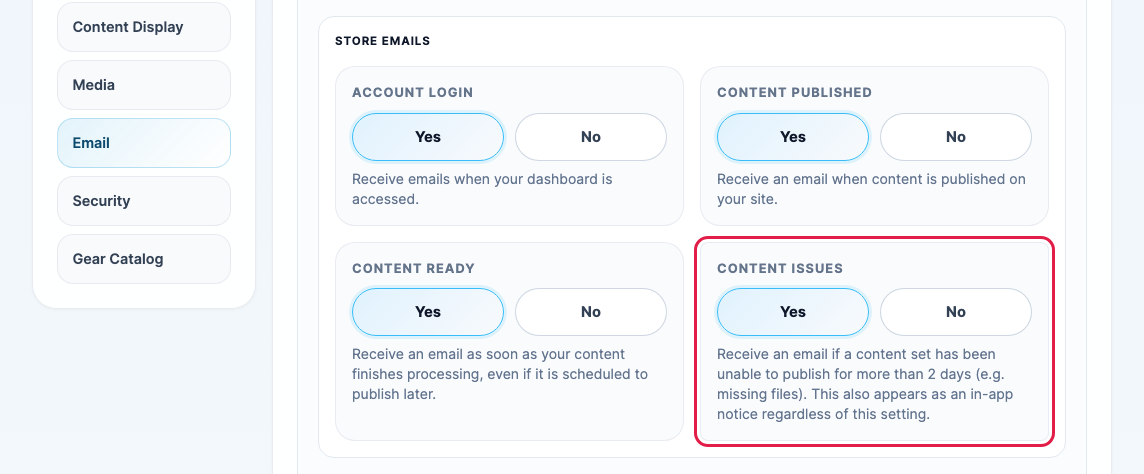
If a content set still can't be published after 2 days, you'll get an email listing what's wrong, and a Content Upload Error entry in your activity feed (the clock icon at the top of your dashboard). To turn the email on or off, click Store Settings, open the Email tab, and set Content Issues to Yes or No. The activity feed entry appears either way.