Creating Discount Codes
A discount code is a word your fans type at checkout to get money off the videos and photo sets they buy, for example SUMMER20 for 20% off. You can create as many codes as you like and switch them on or off at any time.
Good to know: discount codes work on content purchases only (videos and photo sets). They do not apply to memberships.
Create a discount code
-
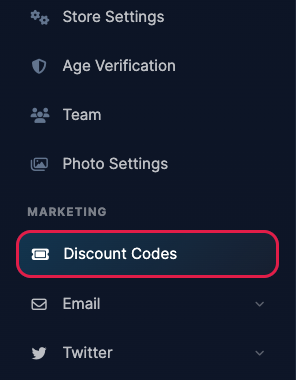
Log in to your dashboard and click Discount Codes under Marketing in the left menu.
-
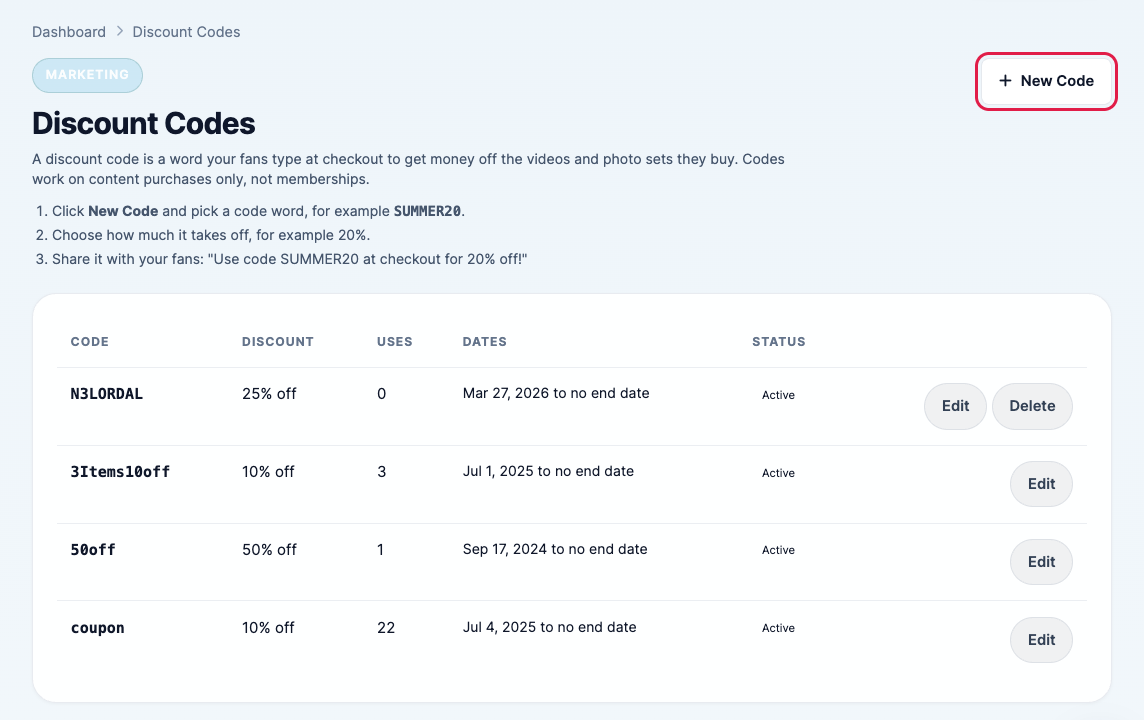
Click + New Code in the top right corner. Your existing codes are listed below it.
-
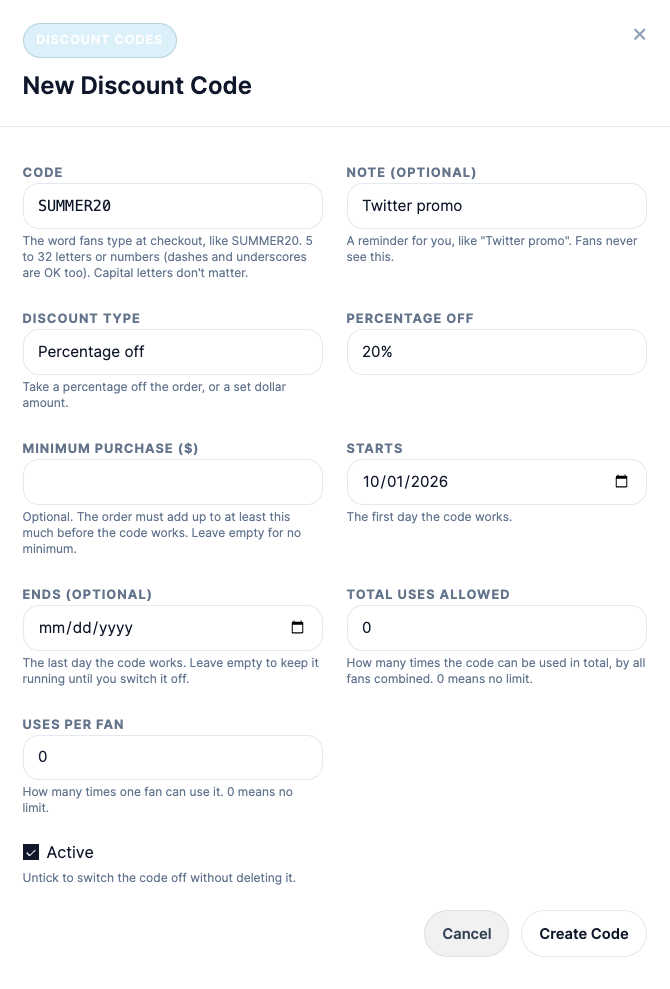
Fill in the form:
- Code: the word fans will type at checkout. Use 5 to 32 letters or numbers (dashes and underscores are fine). Capital letters don't matter; codes are saved in capitals.
- Note (optional): a reminder for yourself, like "Twitter promo". Fans never see it.
- Discount type: choose Percentage off (5% to 90%) or Fixed amount off (a dollar amount).
- Minimum purchase: optional for percentage codes. For fixed amount codes it is required, and it must be at least $1.99 more than the discount so every order still pays the minimum content price.
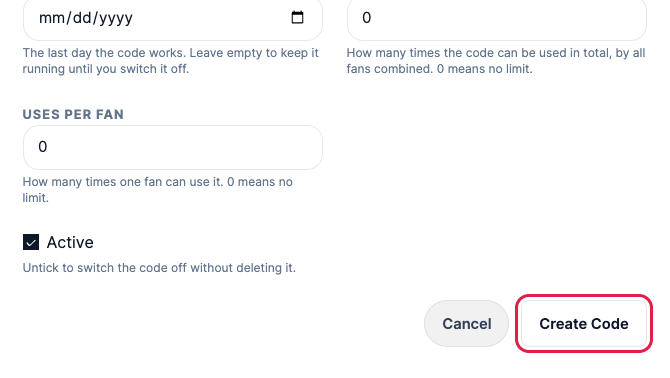
- Starts / Ends: the first and last day the code works. Leave Ends empty to keep the code running until you switch it off.
- Total uses allowed / Uses per fan: limit how many times the code can be used overall, or by one fan. Enter 0 for no limit.
- Active: leave this ticked so the code works straight away.
-
Click Create Code.
-
You will see a "Discount code created" message, and your new code appears at the top of the list. The Uses column shows how many times fans have used it.
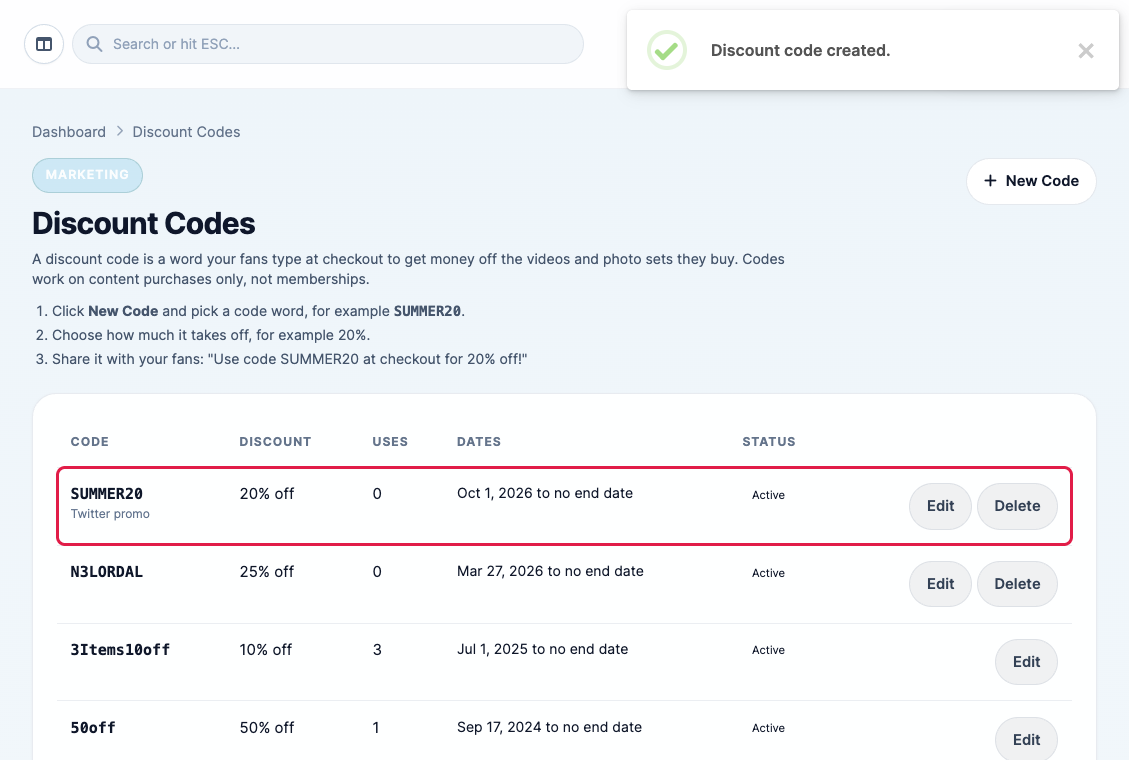
- Share the code with your fans, for example: "Use code SUMMER20 at checkout for 20% off!"
Edit, pause or delete a code
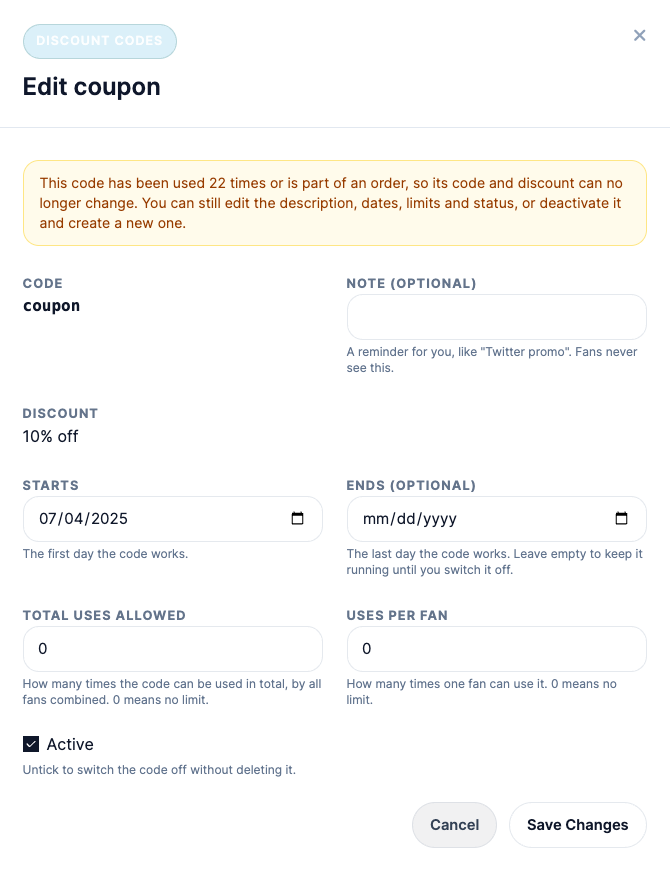
Click Edit next to any code to change it.
- To pause a code, untick Active and click Save Changes. Fans can no longer use it, and you can switch it back on later.
- To end a code on a certain day, set an Ends date.
- To delete a code, click Delete and confirm. You can only delete codes that have never been used.
Once a fan has used a code, its code word and discount are locked so your sales records stay accurate. You can still change the note, dates, usage limits and the Active setting. If you want a different discount, untick Active on the old code and create a new one.