
Selling on the Marketplace
The marketplace is our central clip store, where buyers browse and buy clips from many PaysiteManager stores in one place. Joining puts your clips in front of buyers who may never find your own site. You choose which clips are listed, and you can leave at any time.
Good to know: the marketplace is opening to stores in stages. If you don't see Marketplace in your Store Settings, it isn't available for your store yet.
Joining is a request. Once you opt in, our team checks your store and sets it up, so your clips are not listed straight away. Membership-only stores sell memberships rather than single clips, so they can't join the marketplace and don't see the Marketplace settings.
Ask to join
-
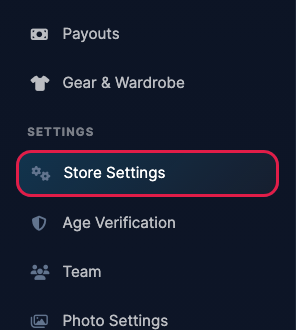
Log in to your dashboard and click Store Settings under Settings in the left menu.
-
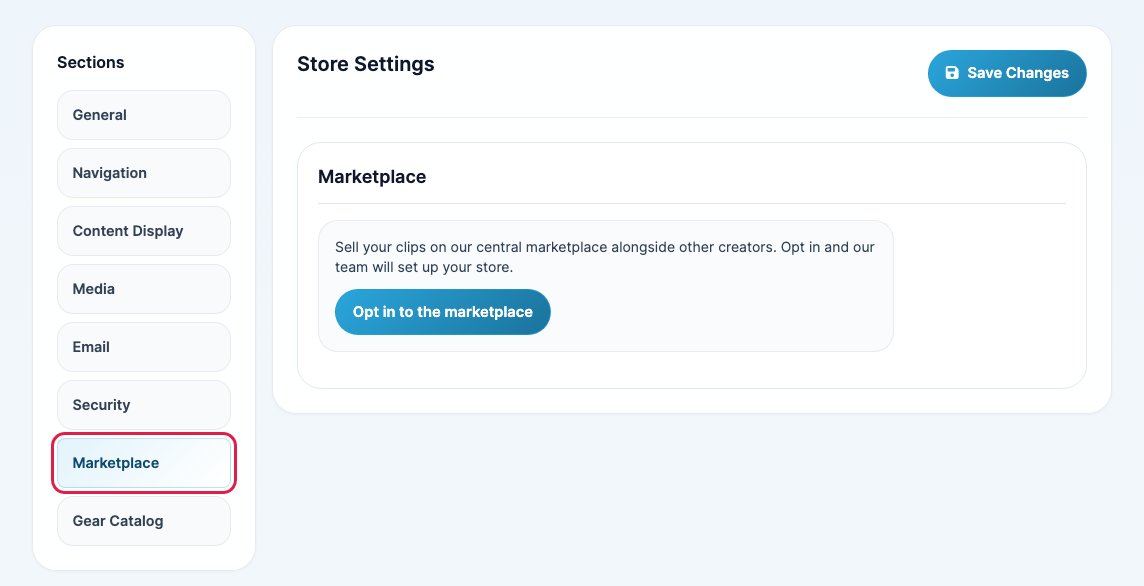
Under Sections, click Marketplace.
-
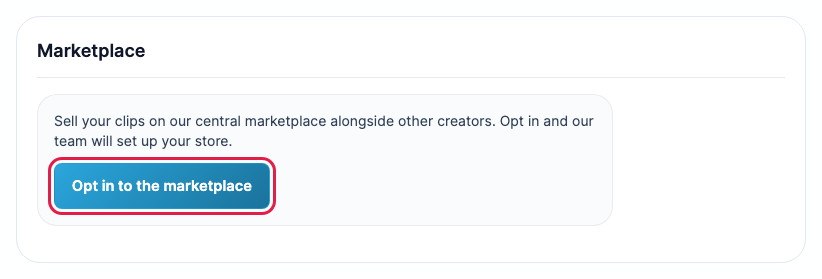
Click Opt in to the marketplace.
-
The button changes to Setup pending. Our team has your request and will set your store up, choose your clips and put it on the marketplace. Nothing else is needed from you.
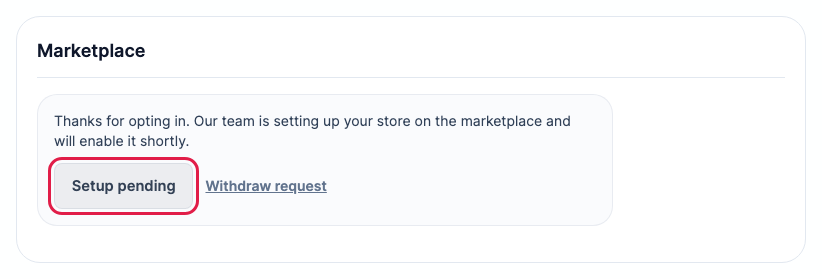
Changed your mind before we finish? Click Withdraw request. You can opt in again later.
Once your store is live
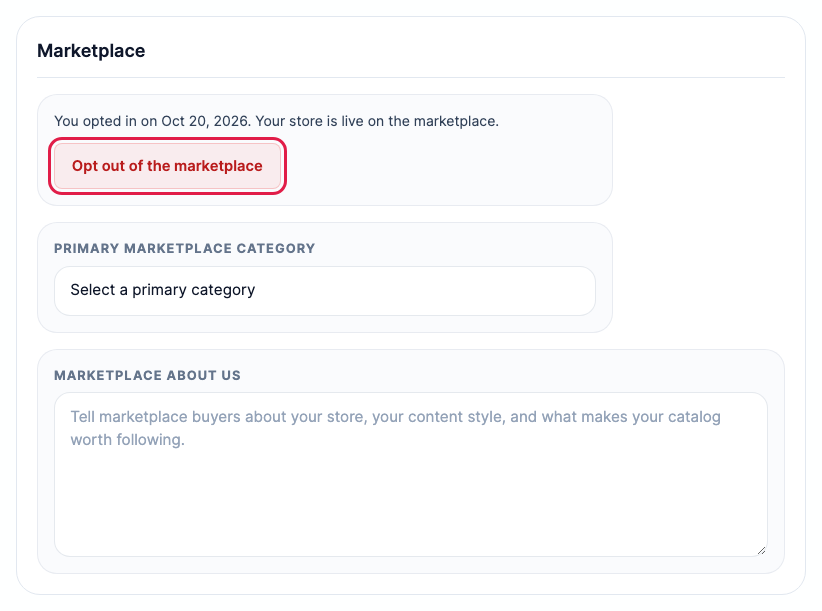
When your store is on the marketplace, the Marketplace section shows the date you opted in and an Opt out of the marketplace button. Two more settings appear:
- Primary Marketplace Category: the category buyers will find your store under.
- Marketplace About Us: a short description of your store and your content for marketplace buyers.
Fill them in and click Save Changes.
Which clips are listed
Our team chooses which of your clips go on the marketplace when we set your store up. After that, new clips are added automatically when you publish them, as long as they meet the marketplace rules. Your content add and edit form shows whether a clip is On marketplace or Hidden on marketplace.
- A clip is only listed while it is published and active on your own site. Unpublishing or disabling it takes it off the marketplace too.
- A clip needs a price to be sold on the marketplace.
- Clips locked under the UK content restrictions are never listed, because the marketplace sells worldwide. They are listed again once the lock is lifted.
- New clips can take a little while to appear while their photos and previews are copied over.
- Want a clip added or taken off the marketplace? Contact support and we'll do it for you.
Leave the marketplace
In Store Settings, under Marketplace, click Opt out of the marketplace and confirm. All your clips come off the marketplace straight away. Your own site is not affected. You can opt in again at any time, and our team will set your store up again.